



In Part 1, I built the machinery that runs a folder of small functions at startup, and in Part 2 I used that machinery to tune the Microsoft Windows IDE’s font, zoom, and keyboard shortcuts. Two extensions remain, and both are about information flowing in and out of the Session at a glance: one makes the title bar tell me exactly what I’m working with, and the other lets me drop things straight onto the Session.
What Am I Dealing With?
As mentioned in Part 1, the Session titlebar includes ⎕WSID by default, but setCaption solves another problem of situational awareness. I test various versions of many things, in particular, Link (I’m one of its main developers) and .NET (which Link uses to keep an eye on the file system). To distinguish my active interpreters, which often use disparate versions of Link and/or .NET, setCaption adds their version information to the Session titlebar while also abbreviating the interpreter characteristics:
∇ setCaption
 ⍝ Set Session caption to include Link and .NET versions
  ⎕SE.Caption←'{WSID} {NSID} - ',8↓¯1↓,(
      '(\d+\.\d+)[.\d]+'
      ' (\d*)(-bit)? (.)(nicode|lassic), BuildID \w+'
      '\.NET +\.NET( Framework)?'
      '  *'
  )⎕R(
      '\1'
      '\3\1'
      '.NET'
      ' '
  ),1 3 6⊂⍛⌷⎕SE.UCMD'TOOLS.Version'
∇
{WSID} and {NSID} are caption template fields that Dyalog keeps current in real-time, namely ⎕WSID (which autoLink sets to a fresh, timestamped working directory, as explained in Part 1) and ⎕THIS (the current namespace). After the dash comes the compact version string. I run ]TOOLS.Version, then 1 3 6⊂⍛⌷ plucks lines 1 (interpreter), 3 (Link), and 6 (.NET) out of the report.
An aside on ⊂⍛⌷: I usually want to select individual elements (major cells) rather than index along multiple axes. I’ve suggested adding this as a select primitive using the glyph ⊇; until that is implemented, to achieve this, the left argument of ⌷ needs to be enclosed. I have, therefore, learnt to read ⊂⍛⌷ as a single unit: select.
A small collection of regular expressions in one ⎕R then tidies the three lines – it strips the build ids, abbreviates “Unicode”/“Classic” to a single letter followed by the bits, squeezes runs of spaces, and collapses “.NET Framework” to “.NET” (“Framework” is implied if the version is 4.x):
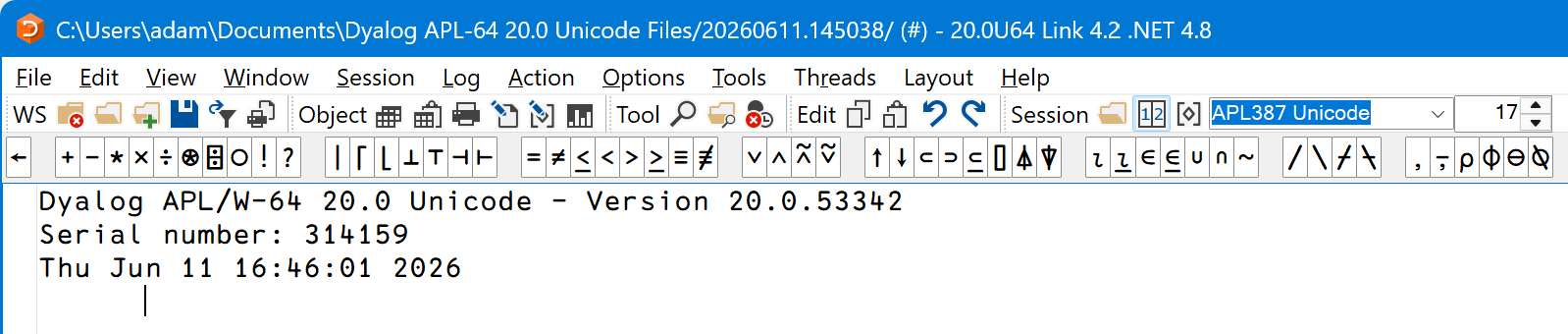
My Session with lots of information in the title bar. Click to enlarge.
Drag, Drop, Done
I often want to import a function, some data, or even an entire source folder into the workspace. However, I was frustrated by the many ways in which this can be done:
⎕FIXcan read function/operator/object source files⎕CSVcan read CSV (Comma-Separated Values) files, but needs variant options set for TSV (Tab-Separated Values), and so on⎕JSONcan parse JSON (and with a variant option,JSON5), but cannot read files, so I have to first use⎕NGET⎕XMLcan parse XML, but also needs⎕NGET⎕SE.Dyalog.Array.Deserialisewhich handles array notation, as above- Link does source folders
In general, how a file should be imported is clear from its file extension (for example, .aplf, .csv, .tsv, .json, .json5, .xml, .apla), unless it is a folder. So, I wrote down all the file types I could think of with how I’d get their contents into Dyalog. That became the experimental ]Get user command, which I gave the slogan get pretty much anything from pretty much anywhere. Watch Rich Park’s webinar for an explanation of what it can do, or enter ]Get -?? in the Session for its documentation.
extStatusBar makes the status bar a drop target:
∇ extStatusBar
 ⍝ Extend Status bar to allow dropping files and folders
  ⎕SE.cbbot.bandsb1.sb.(AcceptFiles onDropFiles)←1 'Get'
∇
AcceptFiles←1 opts the status bar in, and onDropFiles←'Get' says which function to run when something lands on it:
∇ {msg}←Get(object event files item shift)
  :If 9≠40 ⎕ATX'get'
      {}⎕SE.UCMD'Get ]get'
  :EndIf
  ⎕←msg←# get.Get files,shift
∇
The function header decomposes the event message, although we only need two of the elements:
files- The list of dropped files and folders.
shift- The shifting state of the keyboard at the moment of the drop, encoded as a sum of
1for Shift,2for Ctrl, and4for Alt (so3is Ctrl+Shift, and so on).
The first time the handler runs, the get namespace it relies on won’t be present – 40 ⎕ATX'get' won’t report 9 for “namespace” – so I fetch it by running the ]Get user command on itself! Thereafter, get.Get brings the dropped files into the workspace root (#). Fortunately, get.Get already used an encoded parameter, so I didn’t need to map the shifting state, just pass it on:
- Holding Shift is equivalent to
]Get -sync: for example, aLink.Createrather than a plainLink.Import, which means that edits in the workspace are written back to disk (and vice versa where possible). - Holding Ctrl is
]Get -unpack: the contents are put directly into#, instead of into a namespace named after the dropped file or folder. - Alt does nothing yet, but I’m thinking of making it ask you how to import:
]Getallows a filename (or URL) to be followed by a colon and a file extension that overrides the existing extension. For example,]Get data.csv:txtwill import a CSV file as text rather than as a matrix. Let me know in a comment if you have a better idea!
With this, I can drop files, folders, and even zip files of data or code on the status bar, and everything simply appears in the workspace. Magical!
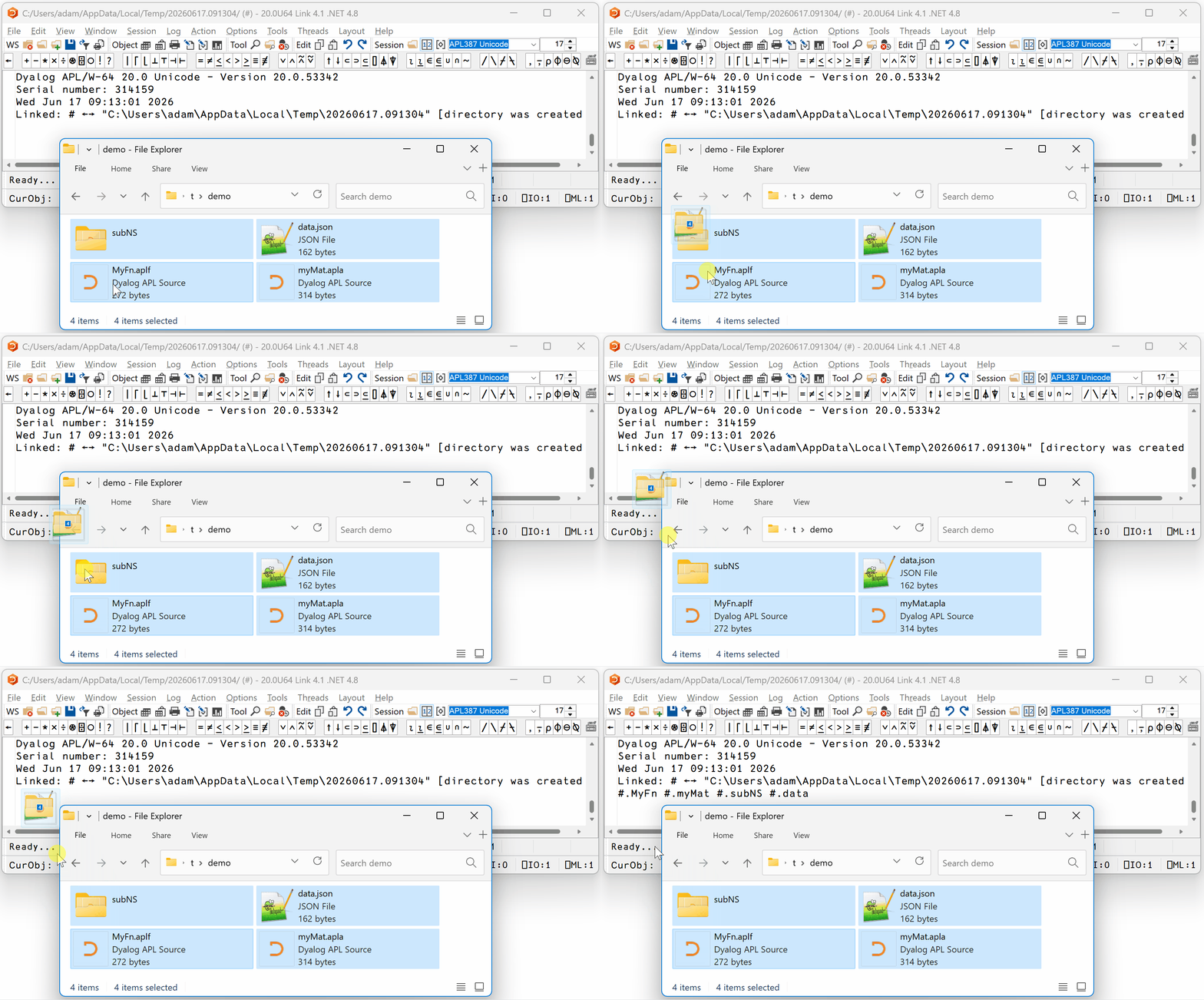
Drag-and-drop of a data file, two code files, and a folder of code files.
Keep It Up!
That rounds out the series. In Part 1 I laid down the startup machinery, in Part 2 I tuned the font, zoom, and keys, and here I’ve made the title bar informative and the status bar a drop target.
In my next, and final, entry in this series, I’ll show you how to simplify some of this code using the new features of the recently released Dyalog v21.0. In the meantime, the easiest way to install everything is to paste all the function definitions from this series into a clear workspace and enter (with the directory that’s appropriate for you):
]LINK.Export # C:\Users\adam\Documents\Dyalog APL-64 20.0 Unicode Files\StartupSession\seextAdding the next idea is a matter of writing a lowercase niladic function and dropping it in the folder (maybe together with some uppercase utilities for the functionality). And there is always a next idea; while writing these posts, I started thinking that I’d quite like to add a toolbar button that toggles ]Rows on and off…
Please comment if this was useful, and let me know if you have an idea for additional Session extensions!
 Follow