

Taking Back Ctrl: Keyboard Shortcuts in the Dyalog IDEs

In this blog post post I describe:

  • how to use standard Ctrl keyboard shortcuts when using Dyalog on all platforms.
  • little-known APL input features for Microsoft Windows.
  • alternative input methods that do not use the Ctrl key for APL input.

I don’t personally use the official Dyalog IME for Microsoft Windows as my daily APL input method. My only complaints are that it forces me to use the Ctrl key for APL input, which conflicts with conventional shortcuts for most applications, and for some reason it puts an additional item in my input method list because I have a Japanese input enabled, even though that is not a supported layout for the IME!

I am a fan of Adám’s AltGr keyboard for Windows for a couple of reasons. It is based on the Microsoft Keyboard Layout Creator (MSKLC), and appears to work in newer Universal Windows Platform (UWP) apps and with the default On-Screen Keyboard on Windows. It also has accents and box-drawing characters. However, support might be unreliable, because Microsoft do not officially support MSKLC on Windows 11, and there are rumoured issues with using it on ARM machines. Its main drawback is the limited choice of shifting keys, which can make it difficult to use with certain keyboard layouts or in certain applications. Personally, I am fond of using Caps Lock as my primary APL shifting key, because it is rare these days that I need to TYPE A BUNCH OF THINGS IN ALL CAPITALS – it feels like shouting.

I used to do this by mapping Caps Lock to Alt Gr through some registry trickery. However, Kanata allows me to use almost any keys I like. I now have Caps Lock and Right Ctrl as APL shifting keys. In addition, I can double-tap Caps Lock to toggle it, so I can SHOUT OVER TEXT if I really need to. It’s cross-platform, so my single APL Kanata configuration gives me a consistent experience even when using my Linux virtual machine. There are still many features on my wish list for a comprehensive input method editor, but this is quite good for now (I wonder if anybody is able to adapt mozc for APL?).

Whichever keyboard input method you use, once you are not using Ctrl for APL input you will be very glad to get back your beloved, conventional keyboard shortcuts for use in the Dyalog editor.

In the Dyalog IDE for Microsoft Windows, you can set keyboard shortcuts by selecting Options > Configure in the Session’s menu bar, then selecting the Keyboard Shortcuts tab. From here, you can click on a code that corresponds to an action for which you want to set a shortcut.
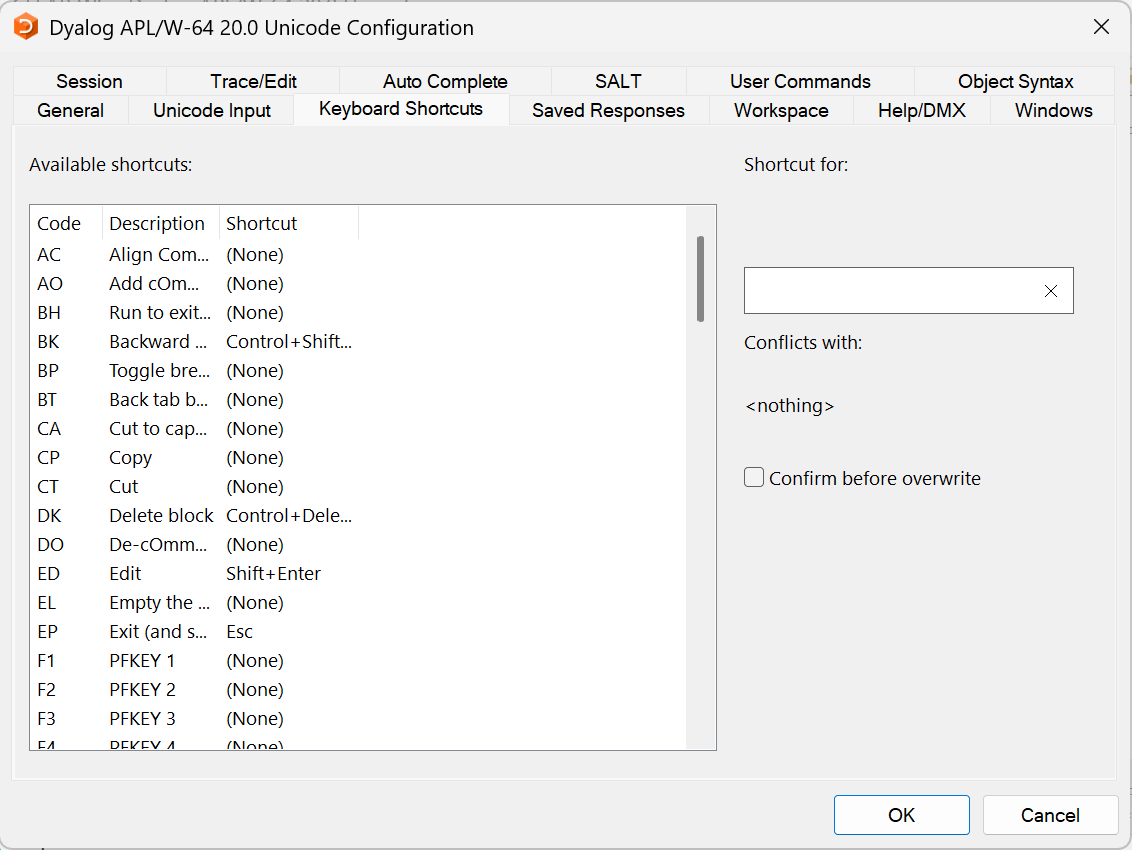
Dyalog IME for Microsoft Windows Configuration Dialog

These are keyboard shortcuts recognised by the Dyalog development environment.

I set:

  • <FX> to Ctrl+S to save changes in the editor without closing it
  • <SA> to Ctrl+A to select all text in a window
  • <CP> to Ctrl+C to copy text
  • <CT> to Ctrl+X to cut text
  • <PT> to Ctrl+V to paste text
  • <SC> to Ctrl+F to search and find text in the session log, editor, and debugger
  • <RP> to Ctrl+H to search and replace text in the session log, editor, and debugger

To help find these in the list, click on the Code column title to put them in alphabetical order.

In Ride, only <FX> needs to be set, as the other shortcuts should default to this behaviour.

Having said all that, the official Dyalog IME still has features that would be invaluable especially if I were a brand new user. You can read about these in the Dyalog for Microsoft Windows UI guide and configure them using the IDE by going to Options > Configure > Unicode Input > Configure Layout. A little-known tip is that its backtick (also known as introducer or prefix) input method offers a searchable keyword menu, so that you can find glyphs by name or by the name of the function or operator it represents.
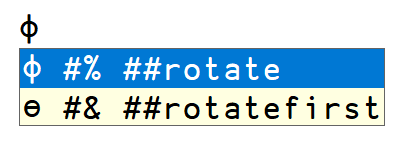
After setting the prefix introducer key to # (octothorpe / hash), pressing twice and typing “rot” shows suggestions for the glyphs and with the keywords “rotate” and “rotatefirst”.

There’s also the wonderful overstrike feature. Once upon a time, APL was executed on remote machines accessed using the IBM Selectric Teletype typewriter; you can see this in this demonstration from 1975. Certain characters would be composed by typing one symbol over another, such as printing a vertical bar (|) over a circle () to produce the circle-bar glyph for rotate/reverse ().

Its basic usage is a feature of the IDE for Microsoft Windows; the IME isn’t required at all. If you press the Ins key on your keyboard, it usually toggles “insert” or “overtype” mode. This is typically indicated by the vertical bar text cursor changing into an underbar. Typing will then replace existing text indicated by the cursor. With overstrikes enabled, APL glyphs can be created using other glyphs!

APL Glyph Overstrike Animation

Insert, Slash (/), LeftArrow, Dash (-), Circle (), LeftArrow, Stile (|)

The IME allows you to use this in applications other than Dyalog by ticking Enable Overstrikes from the IME settings. You can read the documentation to learn more, but the basic mechanism is to use the Overstrike Introducer Key (default Ctrl+Backspace) followed by entering the two symbols to overstrike.
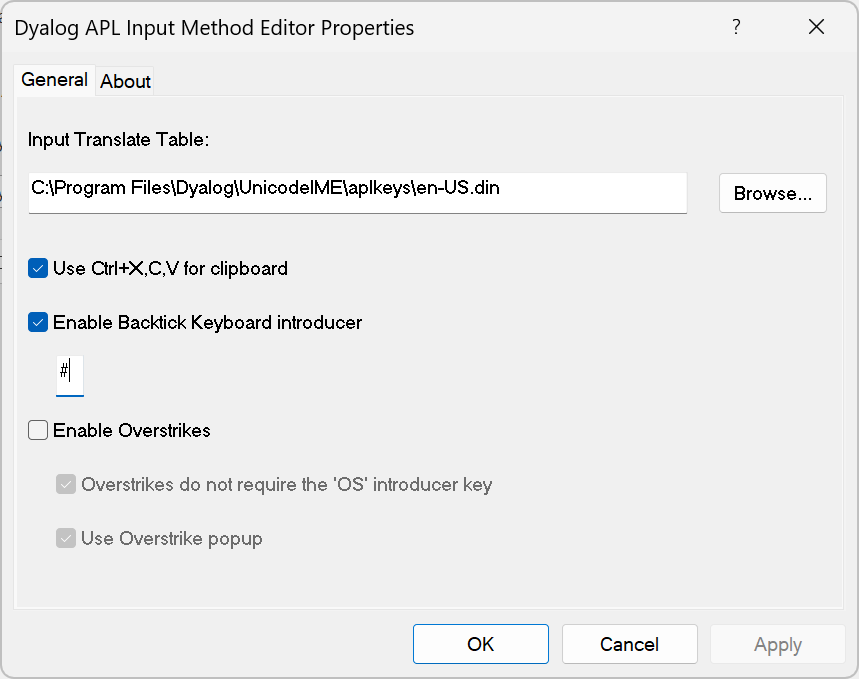
Settings menu for the Dyalog Input Method Editor

For this post I just wanted to highlight aspects of APL input beyond the simple defaults. For more about using your keyboard with Dyalog, see Adám’s blog post about enhanced debugging keys.

Advent of Code 2025 – Day 1 in APL

Advent of Code is an annual challenge in which a new programming puzzle is released every day for the first 12 days of December. We always see some great solutions in Dyalog APL. I’m going to look at the first problem, drawing on my own solution and some of those that have been shared across various message boards and in the APL Wiki.

Parsing

Day 1’s problem tasked us with uncovering the password to enter the North Pole by counting how often a dial points to zero in a sequence of rotations. Before we can solve the problem, we have to parse the input file we’re given. If you’re not interested in the parsing, you can move straight to Part One, but you’ll miss a cool new way to use the -functions!

The standard way to read a text file is to use the ⎕NGET (Native file GET) system function. A little known addition to ⎕NGET, available in the recent Dyalog v20.0 release, is the ability to load a file directly into a matrix. This is faster than loading each line as a character vector and mixing them together, and is very handy for Advent of Code problems, which often have rectangular input files.

To parse the numbers given in the input file, it’s easy to use to execute the text for each number as APL code, yielding the number as a result. For a fun exercise like Advent of Code, this is fine, but in production code, this can be very dangerous. If you’re -ing text provided by a user, they could provide a malicious input like ⎕OFF, or worse! This is why the system function ⎕VFI (Verify Fix Input) exists, to parse numbers and only numbers. ⎕VFI also allows you to configure the separators between numbers. For instance, you could use ','⎕VFI to parse numbers separated by commas.

Using ⎕NGET and ⎕VFI together gives a very neat way to parse the input, abusing the Ls and Rs as delimiters for the numbers.

      ⎕IO←0
      input←⊃⎕NGET 'example.txt' 2 ⍝ provide the flag 2, to load the file as a matrix
      input
L68
L30
R48
L5
R60
L55
L1
L99
R14
L82
      1↓,input ⍝ our input numbers are delimited by 'L's and 'R's
68L30R48L5 R60L55L1 L99R14L82
      size←1⊃'LR'⎕VFI 1↓,input ⍝ use ⎕VFI, telling it that 'L' and 'R' are the separators
      size
68 30 48 5 60 55 1 99 14 82

This is much faster than loading the input into separate lines, and executing the number on each one.

      ]Runtime -c "1⊃'LR'⎕VFI 1↓,⊃⎕NGET 'input.txt' 2" "(⍎1↓⊢)¨⊃⎕NGET 'input.txt' 1"

1⊃'LR'⎕VFI 1↓,⊃⎕NGET 'input.txt' 2 → 6.9E¯4 |    0% ⎕⎕⎕⎕⎕
(⍎1↓⊢)¨⊃⎕NGET 'input.txt' 1 → 5.9E¯3        | +754% ⎕⎕⎕⎕⎕⎕⎕⎕⎕⎕⎕⎕⎕⎕⎕⎕⎕⎕⎕⎕⎕⎕⎕⎕⎕⎕⎕⎕⎕⎕⎕⎕⎕⎕⎕⎕⎕⎕⎕⎕

In addition to the sizes, we also need to parse the direction of each rotation. This is a simple matter of comparing the first column of the input against 'L' or 'R', choosing a 1 for each 'R' (as a right turn is considered positive), and a ¯1 for each 'L' (as a left turn is considered negative). The classic way to do this is with ¯1*.

      input[;0]
LLRLRLLLRL
      direction←¯1*'L'=input[;0]
      direction
¯1 ¯1 1 ¯1 1 ¯1 ¯1 ¯1 1 ¯1

As an alternative, Reddit user u/light_switchy found the very nice train 'R'(=-≠) for this.

      'R'(=-≠)input[;0]
¯1 ¯1 1 ¯1 1 ¯1 ¯1 ¯1 1 ¯1

Tacit programming can be tricky to read. For the benefit of those of us who prefer explicit code, 'R'(=-≠)x is evaluated as ('R'=x)-('R'≠x), which is the same as ('R'=x)-('L'=x), since x is made up of only 'R's and 'L's.

Part One

Many APLers have solved this year’s first problem, and the approach is so natural that everybody’s solution had a similar shape. By multiplying the size and direction of each rotation, we can find the difference in position that each rotation makes:

      size×direction
¯68 ¯30 48 ¯5 60 ¯55 ¯1 ¯99 14 ¯82

We can then use a sum scan to find the cumulative position of the dial after each rotation, remembering to include the starting position (50):

      +\50,size×direction
50 ¯18 ¯48 0 ¯5 55 0 ¯1 ¯100 ¯86 ¯168

We are working with a circular dial, so instead of going above 99, or below 0, we want to wrap around the numbers on the dial. We can use residue (|) to fix this:

      100|+\50,size×direction
50 82 52 0 95 55 0 99 0 14 32

Finally, we are required to find the number of times the dial is left pointing at zero. Counting this is straightforward, the hard work has already been done:

      +/0=100|+\50,size×direction
3

Part Two

For part two of today’s problem, we are asked to find not only the number of times the dial finished a rotation on zero, but also the number of times any click of the dial points it to zero.

For the size of input we are given today, generating the position of the dial after every single click is an acceptable solution. You could do this using and some transformations, but several people found a nice trick to transform the code from part one into exactly what we need.

In part one, we represented the rotation L68 by the number ¯68, meaning 68 clicks in the negative direction. For this part, we want to represent each of those clicks independently, which we can do by replicating the direction by the size of the rotation, rather than multiplying it:

      size/direction
¯1 ¯1 ¯1 ¯1 ¯1 ¯1 ¯1 ¯1 ¯1 ¯1 ...

Using the same method as in part one, we can find the position of the dial after every single click, and count the number of times we see a zero:

      +/0=100|+\50,size/direction
6

This is a change of just one character from our part one solution, very elegant! Therefore, our solution for day one is:

      input←⊃⎕NGET 'input.txt' 2   ⍝ load the input as a matrix
      size←1⊃'LR'⎕VFI 1↓,input     ⍝ parse the size of each rotation
      direction←¯1*'L'=input[;0]   ⍝ find the direction of each rotation
      +/0=100|+\50,size×direction  ⍝ solve part 1
      +/0=100|+\50,size/direction  ⍝ solve part 2

If you’re interested in a more performant solution, there is a way to avoid generating all the intermediate positions of the dial. Handling the edge cases is tricky, but it runs much faster. This blog post is long enough already, so I’ll leave determining how it works to you!

      ]Runtime -c "+/0=100|+\50,size/direction" "SecretFastSolution"

+/0=100|+\50,size/direction → 1.2E¯3 |   0% ⎕⎕⎕⎕⎕⎕⎕⎕⎕⎕⎕⎕⎕⎕⎕⎕⎕⎕⎕⎕⎕⎕⎕⎕⎕⎕⎕⎕⎕⎕⎕⎕⎕⎕⎕⎕⎕⎕⎕⎕
SecretFastSolution → 3.2E¯5          | -98% ⎕

Advent of Code 2025 is open for submissions until 12 December 2025, so it’s not too late to get involved! Trying the problems yourself, and then reading the approaches by others, is a fantastic way to learn new programming techniques. Happy APLing!